Age Filter
Pick one of six ages, from Child (8) to 90s, and the age filter redraws your selfie at that age. Your first image is free, no sign-up, no app.
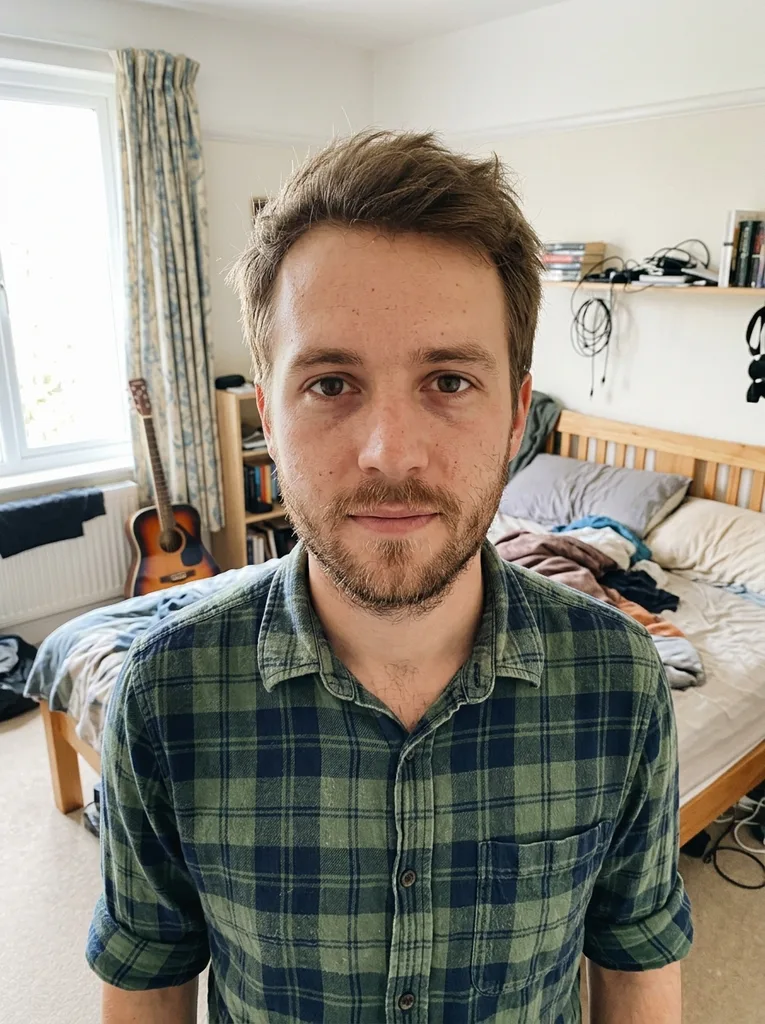 Before
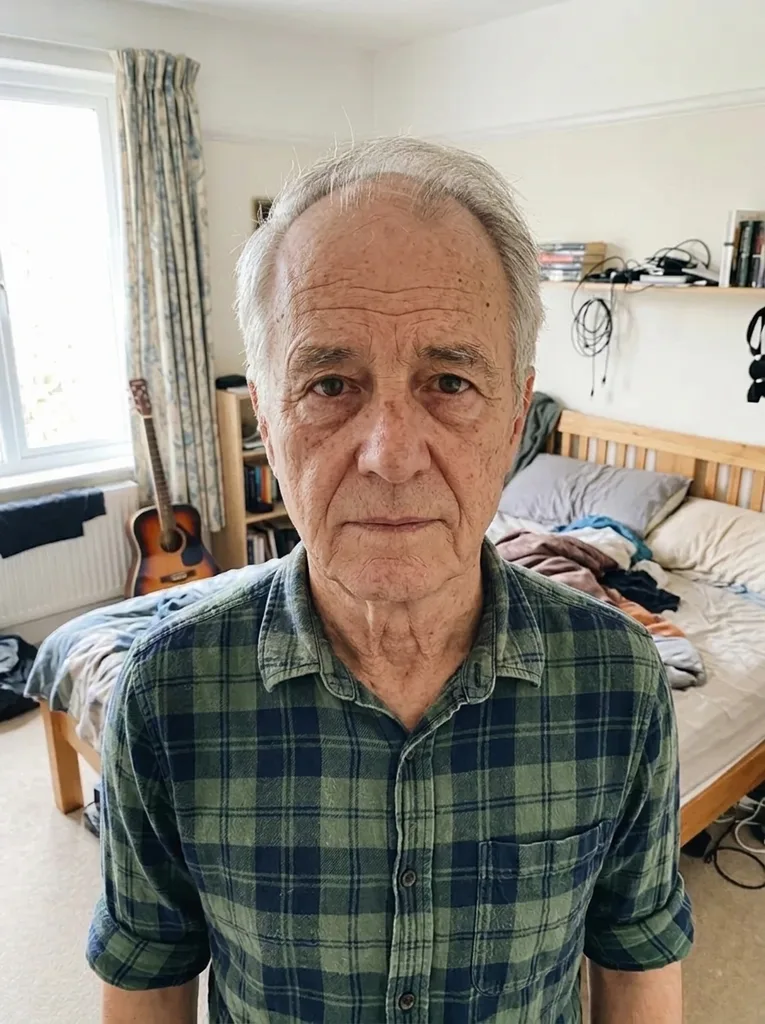 After
AfterExample result. Upload your photo to make yours.
Examples
BeforeAfterAn AI age filter that goes younger and older
This age filter turns one selfie into one new photo of you at the age you pick. There are six presets: Child (8), Teen (16) and 20s take you back, while 50s, 70s and 90s move you forward. Each run makes a single 3:4 portrait, so you see one age at a time.
The model is told to change what really shifts with age: skin texture, wrinkles, facial volume, jawline, hairline, hair color, eyebrows and neck. It is also told to keep your face shape, eye shape and color, nose, mouth, skin tone and marks such as moles, plus your pose, background and lighting. The download has no watermark.
Made for
- Curious about your 70s
- Missing your teen photos
- Comparing with family pictures
- Writers and character designers
- Birthday and milestone jokes
How to use the aging filter
- 1
Upload one clear selfie
Click or drop a JPG, PNG, WebP or HEIC photo of one adult, face visible and lit evenly. Your browser converts HEIC and shrinks large photos before upload.
- 2
Pick the age you most want to see
Choose Child (8), Teen (16), 20s, 50s, 70s or 90s; 70s is selected by default. You get one free image across the whole site, so start with the age you are most curious about.
- 3
Add a note, generate, download
Optionally type a request such as "keep my glasses" or "with a grey beard", and it is added to the instructions. Then generate, check the result against your photo in the panel beside it, and download.
Younger presets: Child (8), Teen (16) and 20s
The younger presets work from an adult photo. Child (8) asks for a small round face, smooth skin, a child's proportions and a child's hairstyle. Teen (16) asks for smooth skin, slightly softer features and a teenage haircut with no wrinkles. 20s asks for firm skin, full cheeks and thick hair in its natural color.
The child or teen you see is drawn by AI from your grown-up face, not recovered from an old picture. Photos of anyone under 18 are not allowed, so this age filter can't age up a kid's photo. For a baby version of yourself, the Baby Filter is the better fit.
Older presets: what the age filter adds at 50s, 70s, 90s
50s targets about 55: forehead lines, crow's feet, smile lines, slightly looser skin at the jaw and neck, some grey hair. 70s targets about 75: deep wrinkles, sagging jaw and neck, age spots, thinner grey or white hair, thinner lips and greyer eyebrows. 90s adds papery skin, hollow cheeks, drooping eyelids and ears, and sparse white hair.
In our example, a man in his 20s run at 70s came back clearly older and still recognizable: grey, receding hair, deep lines on the forehead and around the eyes, and his stubble shaved off. His plaid shirt, guitar, bed and curtains stayed in place, with the same pose and framing.
What age progression means here
Age progression means changing a photo to show how a person might look at another age. Forensic artists use it for missing-person cases; this page does a casual version, one AI image of you at one chosen age.
It is a guess built from typical age features, not a forecast. The model knows nothing about your genes, health, sun exposure or habits, so the real you at 75 may look different. Enjoy it as a picture, and compare it with your original photo before you share it.
What people use an age filter for
Your face at 70 or 90
The default 70s preset answers the classic question of what you might look like old. Pick 90s for the strongest change, with hollow cheeks and sparse white hair.
A teen throwback without old photos
Teen (16) or 20s gives today's face younger skin and hair. It is an AI version, handy for a throwback post when the real pictures are lost.
Side by side with a parent
Pick the age a parent or grandparent was in an old family photo, such as 50s or 70s. Put the two pictures next to each other yourself and look for the resemblance.
Characters for stories and games
Writers, game masters and designers can get a younger or older look for a character. Start from your own photo or one from an adult who agreed to it.
Milestone birthday cards
A 50s or 70s portrait makes a gentle joke for a big birthday. Use only a photo of a friend who is happy to be aged.
Before and after posts
Download the result and post it next to your original selfie. The page shows the result on its own, so you pair the two in your post.