Examples
How to Merge Images Side by Side, Stacked or in a Grid
Merge images with five settings and a live preview that updates as you change them.
- 1
Add 2 to 20 images
Drop JPG, PNG or WebP files on the tool or click to pick them. Drag the thumbnails or use the arrows to set the order, and remove any you don't need.
- 2
Choose a layout
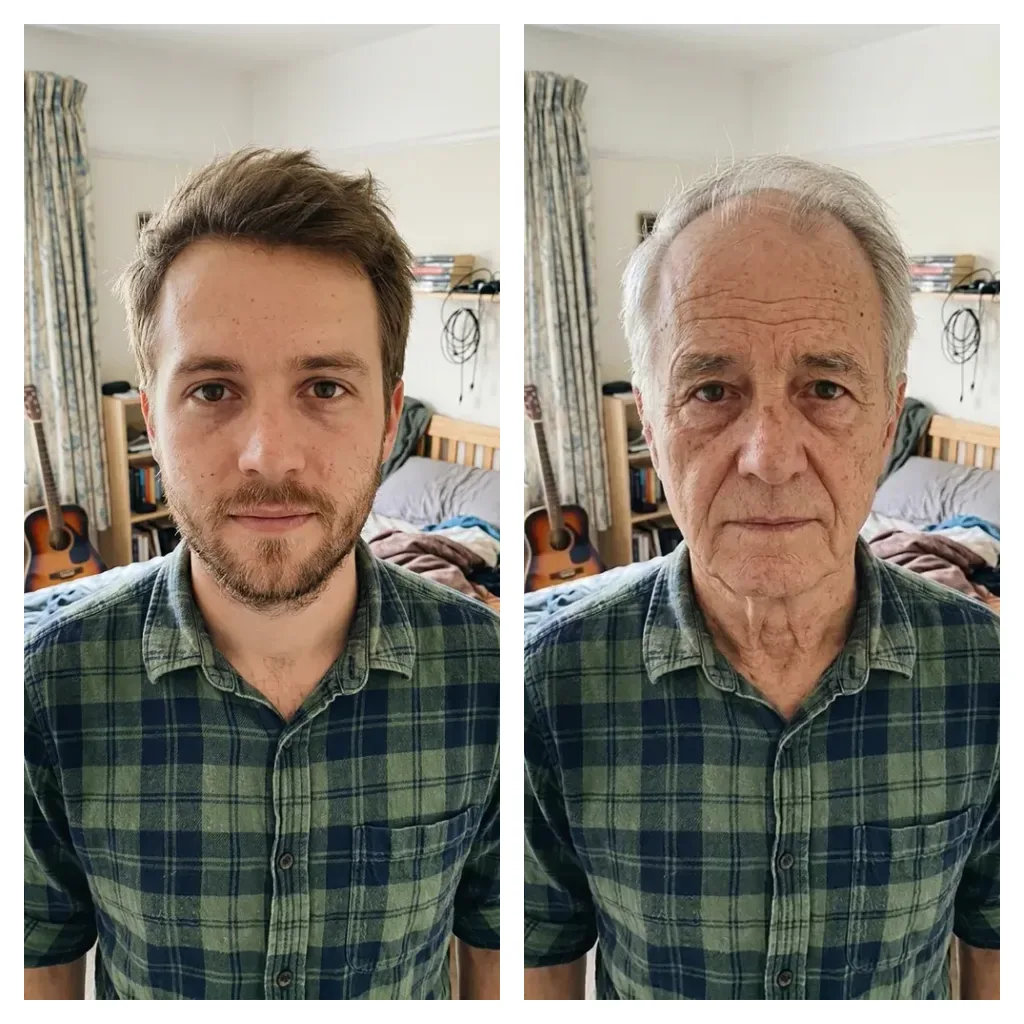
Side by side puts every image in one row, Stacked puts them in one column, and Grid wraps them into rows of 2 to 6. A before and after pair suits Side by side; a run of phone screenshots suits Stacked.
- 3
Pick a size mode and alignment
Same height (Same width when stacked or in a grid) scales every image to the largest one, so small images get enlarged. Original sizes keeps each image's own pixels, and Align lines them up at the top, center or bottom (left, center or right when stacked).
- 4
Set spacing, border and background
Spacing adds 0 to 200 px between images and Border adds 0 to 200 px around the outside. Fill both with one of five swatches, a color you pick, or transparent.
- 5
Save as JPG, PNG or WebP
The line under the preview shows the output size in pixels, and Download saves the file at that size. A transparent background saved as JPG comes out white.
Merge, Collage or AI: Which Image Combiner to Use
Compare Merge Images, Collage Maker and AI Image Combiner by the result you want.
| Merge Images (this page) | Collage Maker | AI Image Combiner | |
|---|---|---|---|
| What happens to your pictures | Placed next to each other, never cropped; resized by Same height or Same width, and scaled down if the layout is too large | Each photo fills a template cell, where you pan and zoom it | AI draws the people from your photos into one new scene |
| Layout | One row, one column, or a grid of 2 to 6 per row | 16 grid templates with 2 to 9 cells | One group photo in the scene preset you pick |
| Shape of the result | Follows your images: two wide photos side by side make one very wide picture | A fixed ratio from 1:1 to 16:9, long edge 1080, 2048 or 4096 px | 4:3, one 1K image |
| Images | 2 to 20 | Up to 20 | 2 to 4 photos of people |
| Save as | JPG, PNG or WebP | JPG, PNG or WebP | One image, no format choice |
| Uploaded? | No, it runs in your browser | No, it runs in your browser | Yes, the AI runs on a server |
| How often | No limit, no sign-up | No limit, no sign-up | One free AI image per visitor, across the whole site |
| Best for | Before and after pairs, screenshot strips, product rows | Social posts that need an exact shape | A group photo of people photographed apart |
Combine Images Without Uploading Them
What happens to your files when you merge images here, and where this tool stops.
Your images stay on your device
This tool opens and joins the images inside your browser tab, then saves the file straight to your device. Nothing is sent to our servers, and no AI touches the pixels.
No sign-up, no cap on runs
There's no account to create and no limit on how many merges you make with this tool. Change a setting and the preview redraws, with nothing to wait for on a server.
File limits
Up to 20 images, each up to 50 MB, in JPG, PNG or WebP. HEIC photos aren't supported, so save them as JPG first.
Very large merges get scaled down
When a layout grows past what the browser canvas allows, the tool shrinks the whole layout to fit and says so under the preview. The exact limits are in the FAQ below. We've tested the tool in Chromium browsers such as Chrome.